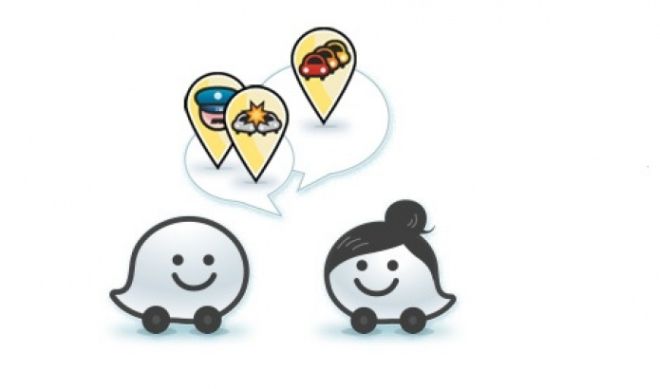
Waze App is now the perfect companion for driving!
Waze provides the perfect traveling buddy when you need help in guiding through an unfamiliar route or a used route. Users can now use the app to receive tips from other Waze users that have driven along the same pathway. Contributions include getting advice on shortcuts, crowds, traffic delays or maintenance, and other inputs. There not much to ask when you don’t have to put that much effort into getting inputs. If you want to know, more here are some additional features which make Waze the best.
Save On Money By Saving On Fuel
Users that have long been planning to reach their desired locale can use Waze as their prerequisite check on how much fuel is needed before you hit the road. Check the App first before getting behind the wheel, and get advice about the crowd, traffic, and advice on the way. Users can decide if they want to go down the same route, or choose a new one. This will allow users to save on money, gas, and time while hitting the road.
Sideline Notifications
When you are busy driving, the last thing you want is annoying notifications to bother you. Waze App knows this and has addressed this by offering the option to hide the notifications while using the app and driving on the road. All you need to do is select your main menu, go to your settings, and then choose General, and tap on the Find Notifications button, choosing to turn off notifications using the sliding bar.
Waze Offers A Secured Experience
All users want is to keep their privacy on their apps when on their phones. The best thing about Waze is they know this as well. Waze lets users keep their passwords, without letting anyone accessing the app. If you forget just tap on the Forgot Password, and your password will be reset.
Easily Drive On Different Routes
When driving down path 1, and you want to switch to path 2, then Waze makes it easy for you. Turn the app on, and Waze will display your current locate, just push and hold down on the location for a few, and then More option will pop up. You can select your starting location, and then choose where you want to stop. Waze will then plan out you route on path 2.
Favorites Galore
You can choose as many favorite options as you want. Waze App permits you to choose your highlighted top 10 favorites. You can still add several more favorites to your list, and just use the shortcut to see additional favorites. Tap on the Favorites icon, and you can see all your favorites in one place.
Users can change the order of their favorites, and choose which one belongs in their top 10 favorite places.