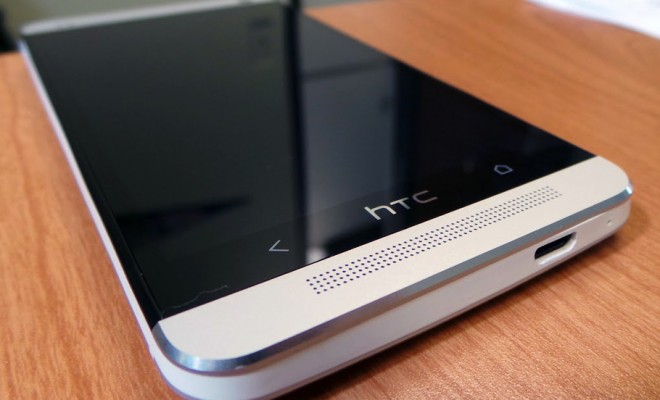
The HTC One M7 has released their version of the Android BeanStalk 4.4.4 ROM. In a venture with Android, the new BeanStalk ROM is based on the version from CyanogenMod in which the OS is customized. The customized ROM helps greatly improve the performance the device and provides new visual interface. The new ROM also has customs features that come with easy access with shortcuts to the most used apps, and other options personalized for the user. This includes customs notifications header, back button to kill apps, custom boot animations, custom wallpapers, a new status bar with options for color transparency, and much more.
Before Installing the New ROM
ROMs that are customized usually provide improvements to the performance, and also a better experience on the user interface. It also means you won’t lose the warranty if you flash your device. So when you want to flash you don’t device, you are able to get a refund if it doesn’t start back up.
Installing the New ROM
You first have to have the HTC One M7 (GSM) model to install the new BeanStalk Android KitKat 4.4.4 custom ROM. Just check your Model Number from your settings. Then you have to wipe the memory of your phone, and put the backup option on. You can use the Clockwork Mod or other applications to backup your phone.
After, ensure that your USB drivers are installed on your PC. Also, your battery must have over 80% charge so that your phone won’t die in the middle of the installation.
Your Device Must Be Rooted
Your HTC One M7 must be rooted to install the custom ROM. Just follow these steps.
-Go online and down the custom ROM for your computer
-Make sure to connect your phone through your USB cable to the PC
-Place the zip file of the custom ROm on your microSD card memory on your phone.
-Install Android SDK, and go to the BeanStalk Android zip file and place the boot.img on a directory on your PC: Android\android-sdk-\windows\platform-tools
-Then do a phone restart, and press down on the volume and power buttons to go into bootloader mode.
-From here, just go the directory outlined above, and press SHIFT+right click and select to open command prompt. type in fastboot flash boot boot.img, and hit Enter.
-Select the option for BOOTLOADER, and you will be in recovery mode.
-Then you can wipe the memory of your phone by hitting the option.
-After clearing the memory cache, go the recovery screen and choose install ZIP from SD Card, and click on the file.
-After completing the installation, choose GO back, and choose reboot system now to restart your phone.
When your HTC One M7 reboots, it will have a new OS, and in a few minutes will be good to use.