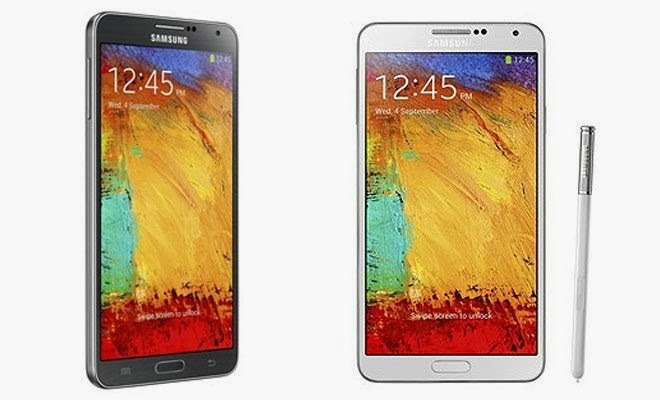
When getting the Samsung Galaxy Note 3 you know you are getting a cross between a phone and tablet, better known as a phablet. It is jam-packed with a host of remarkable features of tricks and mobile tech.
You have the familiar features of other Androids, and some that are exclusive to the usual Samsung TouchWiz user-interface.
Here are some tips for providing a better experience when navigating the Samsung Galaxy Note 3.
1. Removing the Pop-Up Window for the S Pen
For Galaxy Note users, they are aware of the annoying pop-up window that comes on as soon as the S Pen is removed. While it comes in handy to provide several options for the user, it’s only so much you can do. You can now switch the pop-up window off just by going to your Settings, go to your Controls, select S Pen, and tap on the none option for Pen detachment. So now when the S Pen is removed the pop-up window won’t come on the screen.
2. Touch The Screen
The touchscreen for the Note 3 doesn’t have to depend on the pressures for interacting. While you can’t use the Note with gloves, it does provide for excellent responsiveness. The Note 3 is enhanced with increased sensitivity for the display so you can use it with gloves. How cool is that? Just go to Controls in your Settings menu and choose the increase Touch sensitivity.
3. Operate With One Hand
The large display measuring at 5.7 inches has made it hard to use with one hand for users. However, the Note 3 user interface is able to be altered from time to time, so you are able to operate with one hand. Just choose Controls in the Settings menu and tap on One-Handed Operation.
4. Mute Your Phone
Go to the Controls in the Settings menu and choose the Palm Motion option, so you can be able to mute the ringer on the Note 3. All you have to is hover on top of the screen and you possess the powers to keep it on mute.
5. Multi-Tasking Apps
The Galaxy Note 3 screen has a huge screen that makes it a perfect device for multi-tasking so you can run two apps at once. Just go to Device in the Settings menu, and turn on the option for multi-window. You will have a tab to the left in which you can open up to turn on another app to run at the same time.
6. Apps In Pair
So now you know how to turn on the option for running two applications at once, you still have to waste time arranging for the apps you want to use. However, you have the option to open applications in pairs. Just choose two apps you want to open together, go to the bottom of the multi-window panel, and you see the arrow. Hit the arrow, and you have the option to create a pair, select the option, and the pair will be at the top of the panel.
While we only offered a few tips for the Note 3, there are tons of more features that you explore on your own to make you Galaxy Note 3 experience much better.