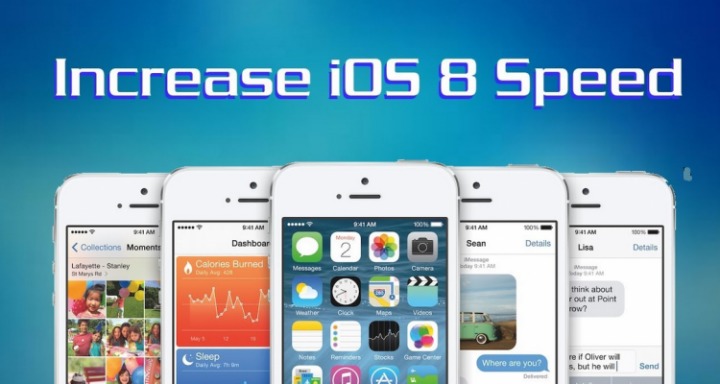
Your iPad or iPhone might experience low performances in case you have updated to iOS 8. That is not a permanent problem as you can easily have a fix to that as will be demonstrated in this piece. Largely, poor performance is the chief problem that many users of iOS 8 complain about following upgrades from iPad or iPod.
Speeding up iPhone 5 on iOS 8
Never sit down and moan about your iOS 8 performing poorly when there are solutions to that. It’s a matter of manipulating the settings and the performance will improve to your delight. The steps to be discussed in this section will not give you a guarantee of enjoying enhanced experience with iOS 8 but will improve its performance. You have to draw a thin line between the two aspects and have it in mind all the time.
Reduce Motion– this is the first thing to do and you will see your iOS 8 performing in a much improved way. You will go to “settings” then “general” followed by “accessibility” and finally “reduce motion” in that sequence. The motion will be turned off with the performance changing positively immediately. This is all because your mobile device will not require any more rendering of the motion.
Transparency– this will be the second thing to turn off with its effects meaning frosted glass looks will be replaced in areas with grayish color. It might end up affecting negatively the general looks of the phone but you have to do that for the sake of improving speed. The procedure for actualizing that will begin from “settings”, move to “general”, “accessibility”, “increase contrast” and then finish with “reduce transparency”. The performance of your iOS 8 will go up.
Storage– mobile devices tend to work slowly when there is a lot of idle data that ends up eating too much of the available space. Your iOS 8 requires enough of the free space if at all it has to perform to satisfactory levels so it’s important to assess the available space. The minimum space should be 100MB so an immediate action to free the jammed space should be undertaken if it goes below that. Get rid of any applications that are not important for iOS 8 functioning.
Change Settings– this will be an alternative to deleting applications because it will improve on iOS 8 performance as all files remain intact. Take note that this option clears all settings so you must reset important ones like Bluetooth and Wi-Fi network.
Disable Spotlight Search– spotlight search consumes a huge part of the iOS 8 memory because it uses data sources with a lot of material. You will start realizing the slowness nature of the device when using spotlight search but disabling it is a workable options that you should consider. You can as well use it but turn off any source that you don’t intend to use.
In addition to all that, turning off the Background Application Refresh feature will work wonders in improving performance of iOS 8.