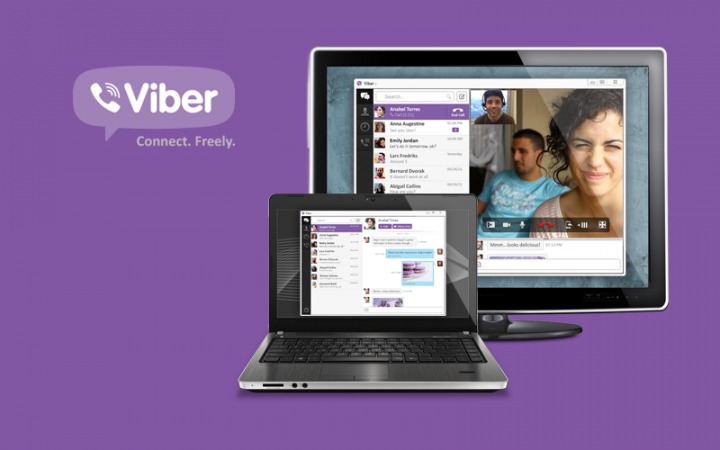
Viber is a mobile application which is mainly used for making VOIP calls. It is on its way to carving its niche in the world of applications by slowly becomingpopular in its functionality.
Recently, this application has become available for desktops too. It is compatible with Mac, Windows and Linux operating systems. In this way, users can use each Viber account from many platforms. Your computer system turns into a virtual call-making machine when Viber is accessed from the desktop. Setting up Viber on your desktop is a very straightforward and easy process. It is believed that Viber will be accepted more by users as it is now also available as a desktop version. This article will explain the process of setting up Viber on your desktop.
Check the Pre-Requisite List
There are some pre-requisites that have to be fulfilled in order to set up Viber. The first requirement is to check whether your system is capable of installing Viber on it. For both Windows and Mac OS systems, you should have at least 1024 MB of storage space internally. Since you are going to make calls using Viber, you will also need a microphone and speakers of excellent quality for both video and for voice calling. In case you will be using any BT device, you will require a Bluetooth receiver in the desktop. Next step is creating the Viber account, which can be done using the mobile application as this is the only way to use Viber desktop. The desktop version does not let you make the account. Even when you use Viber as a mobile application, ensure that you have downloaded 3.0 version of the Viber application for both iPhone as well as for Android enabled smartphones. Viber v2.4 can be downloaded if you are using a Blackberry device.
How to install the Viber application
Logging into Viber’s official website is the easiest manner in which the application can be downloaded. Once you have finished downloading it, you can now access the application from the desktop. When the application is opened, the first screen is the Welcome page in which you should choose “Yes” option. The window will now tell you to make sure that you are possessing an already existing account with Viberthrough the mobile application, for which you will answer “Yes”. Then you will be prompted to enter your phone number or Viber ID. This action will immediately send a confirmation code to the phone number that you have registered in the previous step. Once you type this confirmation code on the desktop window, you will be able to access Viber Desktop. You will also be prompted to give consent for the user agreement before being able to install Viber Desktop.
New features of Viber Desktop
Viber Desktop has several new features that are specially made for those users who will be accessing Viber application from their desktop. Some of the new features include being able to check which all people from your contacts were online recently, clear view of all the contacts who are participating in a group, private conversations with group contacts and receiving as well as sending voice recordings.