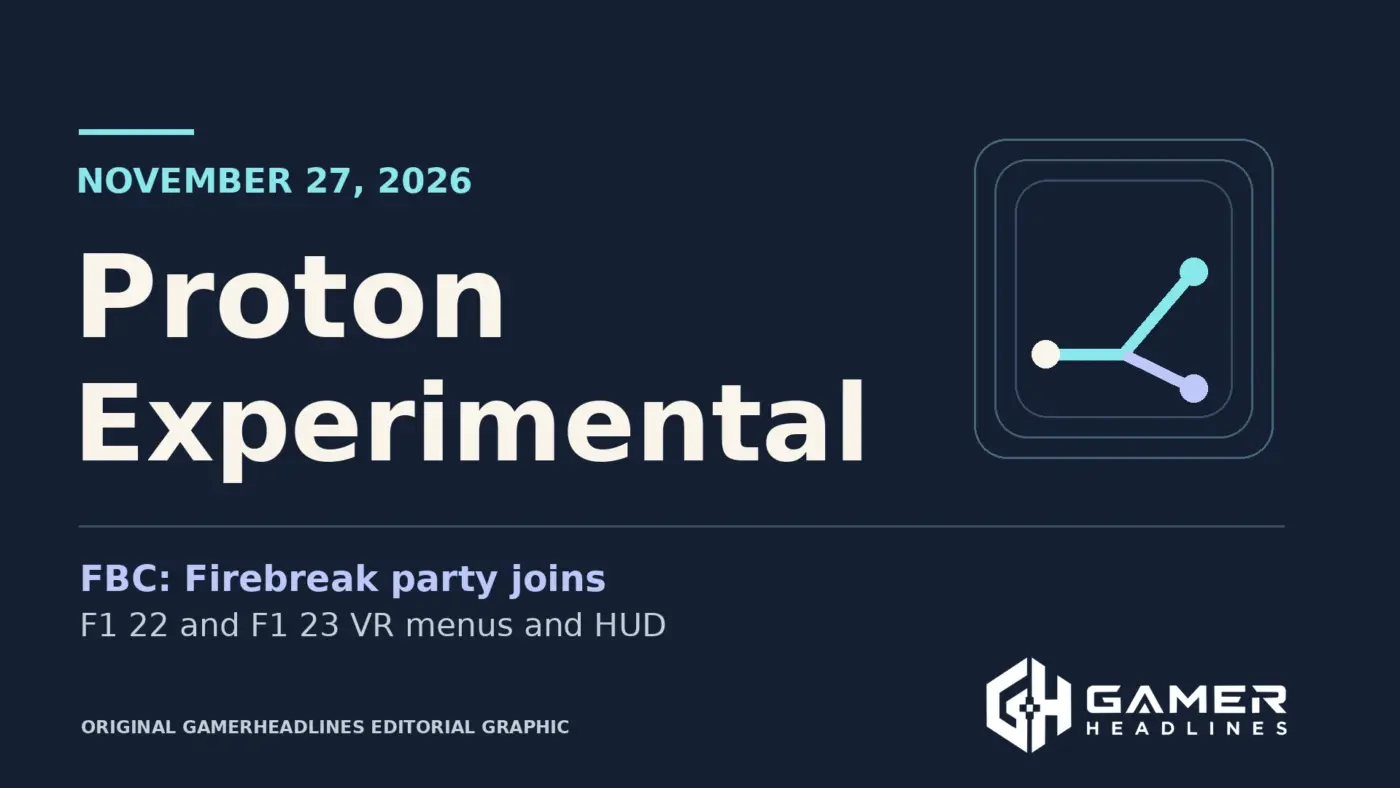
Valve’s November 27, 2026 Proton Experimental changelog lists a fix for FBC: Firebreak crashing when someone joins a party. The same revision fixes main menu and HUD rendering in the VR modes of F1 22 and F1 23. The November 24 Proton 11.0-3 stable release notes omit both fixes. November 27 is the date of the changelog revision; it does not establish when the updated build reached any particular Steam installation.
What to test in FBC: Firebreak
The Firebreak fix concerns the moment someone joins a party. If you could open the game and reach the lobby but the game crashed as another player joined, that matches the failure Valve describes. On Experimental, repeat the party join that triggered the crash, then check that the game stays open and the party remains intact.
A private session with a friend makes it easier to recreate the crash. Keep each person in the same role as before and change Proton on the machine where the game crashed. You can repeat the join a few times if it only failed occasionally. A useful report says when the failure happened, whether the game closed or froze, and whose copy of the game was affected. That gives you a reproducible point to check if you need to restore the previous Proton setting.
A stalled invitation or a join error that leaves the game open calls for a different test. The November 27 notes cover crashes when someone joins a party. They do not say whether the update fixes crashes during mission loading or once play starts, so record a later crash with its own steps to reproduce.
Where to check the F1 VR interface
Valve names two places where rendering was fixed: the main menu and the in-game HUD. A headset can show the game without drawing all the information you need to use it. Start the affected game in VR and look at the main menu. Load a familiar session with your usual HUD settings, then look for the readouts you use during a race, such as the lap count or timing display. A clean menu confirms only the first of the two places Valve mentions.
Leave the headset connection, graphics settings and VR setup unchanged for the first run so you can attribute any difference more confidently. If both games are in your library, start with the one where you saw the fault; a clean run in F1 23 does not tell you how F1 22 behaves on the same setup. Valve’s note covers interface rendering. It leaves headset detection, wheel inputs and frame rate unaddressed. A game that cannot enter VR at all is failing before either of the checks described here.
Valve lists the menu and HUD fixes for F1 22 and F1 23 without naming a headset. The notes give no standalone Steam Frame rating for either game. The changelog also does not say whether its F1 fixes apply when you stream a game from a PC, so use the same playback setup for the comparison. Valve’s Steam Frame standalone compatibility review documentation applies to games running on the headset itself, with criteria that include performance, legibility and default controls. It excludes games running on a PC and streamed to the headset.
If the host PC runs the game through Proton, that’s where to change versions for a streaming test. Look for the HUD in the headset. If it’s visible but hard to read, compare it with the display on the PC where possible. For updates to the stream itself, our coverage of Steam Frame’s streaming resolution and display sharpness update is the more relevant place to start.
For the headset’s room view, see our coverage of chroma-key room view in the SteamOS and SteamVR betas. You don’t need to change those settings to check whether an F1 game draws its own HUD.
What changed since the previous Experimental changelog
The November 24 wiki revision still showed a November 13 heading for its Experimental section. Comparing that snapshot with the November 27 revision isolates five added fix entries and one addition to the existing playable list. The headline Firebreak and F1 changes account for two of those five entries. The other three concern cutscene audio in Terminator: Dark Fate – Defiance, a memory leak in the Strange Brigade launcher and text missing from the new-game intro screen in Return to Krondor.
The November 24 Proton 11.0-3 stable release lists a crash fix for Terminator: Dark Fate – Defiance and a fix for rendering corruption in Return to Krondor. The earlier Experimental notes already listed a fix for a green line at the bottom of Terminator’s opening cutscene. The November 27 entry adds a separate fix for cutscene audio. Valve lists the Proton 11.0-3 changes as included in Experimental. Someone who switched to stable for the earlier Terminator crash fix can use the Experimental notes to decide whether the silent cutscene is worth testing separately.
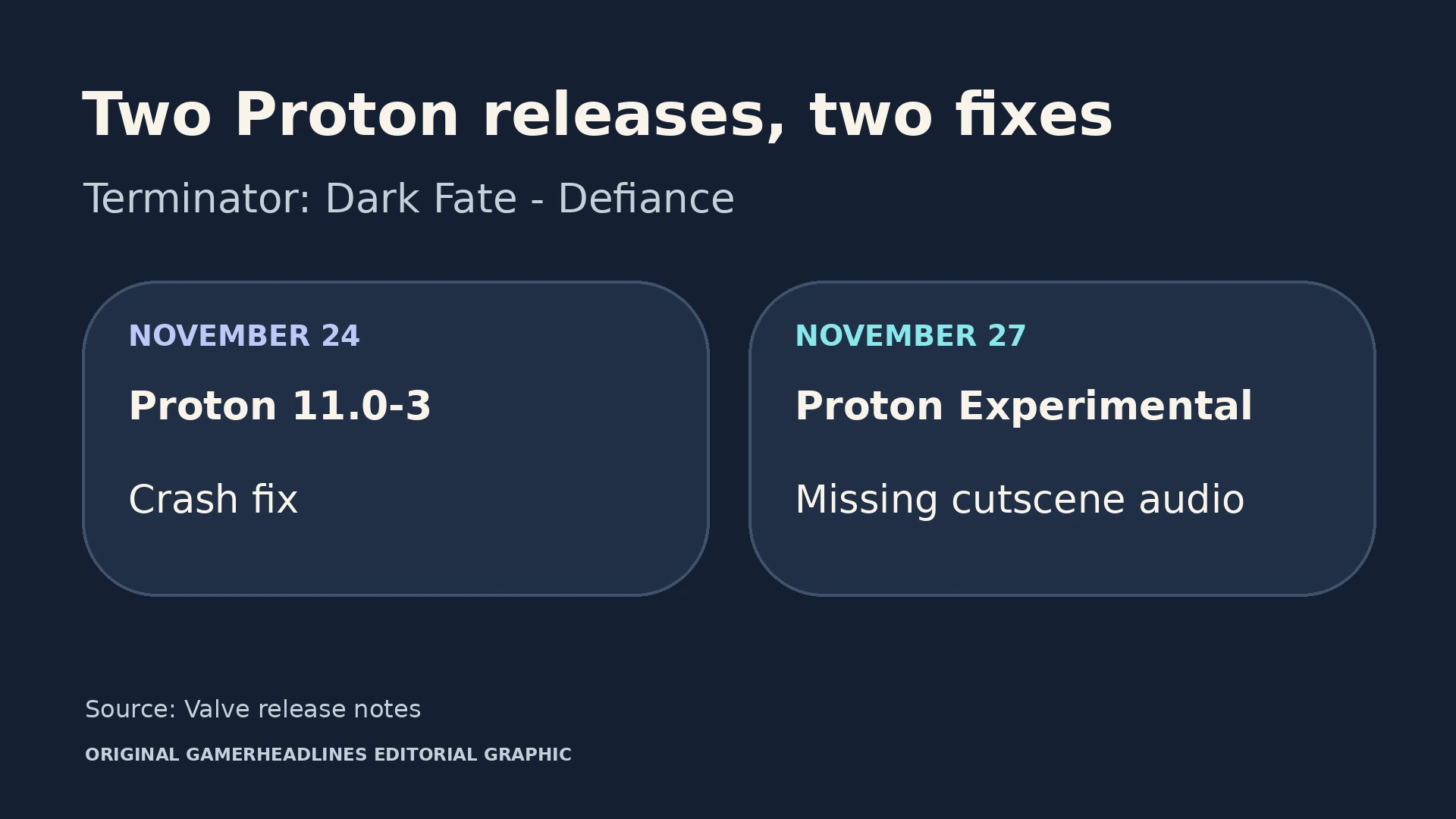
Replay the silent cutscene in Terminator to hear whether its audio returns. In Return to Krondor, the new-game intro is where the missing text would have appeared. Test the separate rendering issue from the stable notes at the point where you saw it before, and note the Proton version if it recurs. Valve places the Strange Brigade leak in the launcher. Watch the launcher’s memory use over time if that was the issue on your system. The changelog does not give a target memory figure.
EVERYONE’S TIER LIST! is the sole addition under “Now playable” in this revision. Breadbox, Gray Raven, Crown Trick, Danganronpa V3: Killing Harmony and ArcheAge Chronicles were already on that list. For a first launch of EVERYONE’S TIER LIST! on Linux, use the November 27 notes as a reason to try Experimental if the game fails on your usual Proton version, then check the game on your own setup. The Steam Frame fix for DARK SOULS II: Scholar of the First Sin was also in the earlier Experimental notes. Its presence alongside the F1 entries does not make those entries Steam Frame fixes.
The prior Experimental notes already listed a fix for hitching when clicking the mouse in Deep Rock Galactic. Our Season 7 Contingency Protocol preview covers the upcoming game content.
When to switch one game to Proton Experimental
Valve’s Proton version documentation describes Proton Experimental as a channel for public testing of experimental features. That’s the standard Experimental option to try here, where Steam offers a compatibility choice for the game. Valve gives stable Proton builds numbered versions and describes release-candidate testing before stable releases. Steam may show a numbered Proton version alongside Experimental, so write down the number if you had already chosen one. The separate bleeding-edge beta branch is automated and untested, and Valve warns that it can harm game prefixes or saves. If you already opted into that beta branch, its behavior is a poor comparison for the fixes in the November 27 notes. Valve says it tests games that work only with Proton Experimental for regressions before releasing the standard Experimental build. That policy doesn’t establish that Valve tested either F1 game with your headset or settings. Note which branch you’re on before drawing a conclusion from the results.
Leave Steam’s automatic selection alone for games that already work. Before switching the game to Experimental, record its current Proton setting, whether it’s automatic or a version you chose. Run the same check on Experimental. Restore the previous setting if the crash recurs or if a new failure makes the game harder to play. Keeping Experimental makes sense if it clears the problem without getting in the way of the rest of the session.
Proton runs a game’s Windows build on Linux; a SteamOS update changes the system the game runs on. An F1 HUD that fails to draw in VR is a reasonable candidate for the Proton test. A display problem that also crops up outside the game gives you a reason to examine what was updated on the device itself. If the problem you’re chasing is broader, such as display behavior across several games on Deck, our SteamOS 3.9.7 beta coverage looks at frame timing and display fixes on the system side. Changing the OS and Proton in the same pass makes it harder to tell which change affected the game.
The same goes for switching Linux distributions or handheld images. If you’re weighing that move separately, our Bazzite Linux 44 Deck image coverage explains the handheld release. You don’t need to make that decision to see whether a different Proton selection helps one game on the setup you already use.
If you report a problem after testing, include the title, Proton version and point of failure. In a VR report, be specific about where the display fails. A note that the cockpit HUD is missing after the race loads describes a different problem from a missing main menu or a headset that never shows the game.