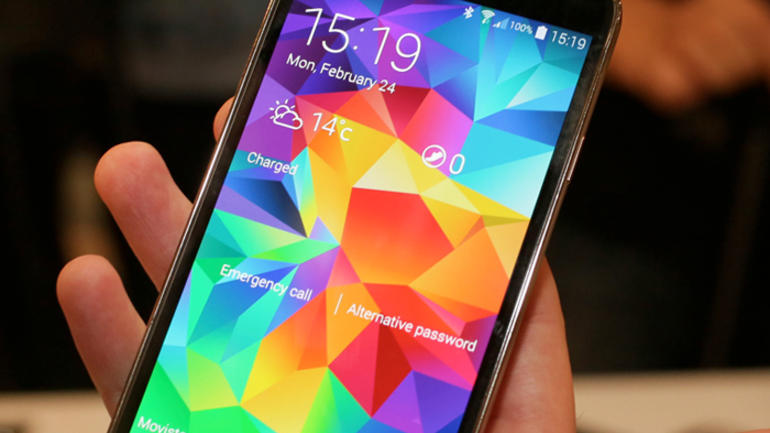
The Samsung Galaxy S5’s battery isn’t half-bad, but the phone also draws heavily on whatever the battery can push out. Because the hardware hidden within the S5 is top of the line, and because the screen is relatively big, the S5’s battery has its work cut out. However, you can greatly increase the phone’s battery power if you give up on some possibly unnecessary features or tweak some settings here and there. Let’s go through what you can do to get the most battery life out of the Samsung Galaxy S5.
[promo title=”Limit Power-Hungry Apps”][/promo]
The Samsung Galaxy S5 has plenty of storage space, so it’s always tempting to fill up the smartphone with all the latest apps. You shouldn’t give up on your favorite apps just for the sake of getting some extra juice out of the battery, but keep an eye out on apps that really drain it. To do so, go to your Settings tab, and choose ‘Battery’. You’ll see a list of running apps and how much they are really draining your battery. The most power-hungry apps should be limited. You don’t have to uninstall them or stop using them, but tweak them so they don’t always run in the background and don’t overload your phone with unnecessary processes.
[promo title=”Limit Location Tracking and turn off Bluetooth”][/promo]
Sure, the phone has Bluetooth, but frankly, unless you’re linking your Galaxy S5 to your car’s stereo system or to your headset, you don’t really need to run it all the time. Make a habit out of keeping it off at all times and only turning it on when you need it. You’d be surprised how much battery life you can save by doing so.
On the other hand, you have Location Info, which basically tells you where you are at any given time. This is extremely useful when trying to navigate with apps such as Google Maps, or when trying to check in at certain places. However, you don’t need it to pinpoint your exact location accurately at any given time. If you’re not walking through unknown areas where any wrong turn could cause you to get lost, you should consider tweaking Location Tracking a bit. You can do so by accessing Settings, then going to Location and further on to Mode, where you’ll have to replace the ‘High Accuracy’ mode with the ‘Power Saver’ mode. This will not render Location Info useless, but it’s going to be slightly less accurate.
[promo title=”Download a battery manager”][/promo]
It might seem like an obvious tip, but using a good battery management app can do wonders for how long your phone lasts. A great app for any smartphone using a Snapdragon CPU is Snapdragon Battery Guru, and since the Samsung Galaxy S5 has one of the best Snapdragon chips within, it will obviously work with it too. The app delivers great results by learning basic usage patterns and determining when you need certain features such as WiFi, and when you don’t. Snapdragon Battery Guru is completely free to download and use, so go right ahead and grab it. There are no strings or risks attached, and it can help you get an extra 5-10% out of your battery life, if not more.
[promo title=”Set your Screen Time-Out”][/promo]
Another fairly obvious tweak that many overlook, setting the Screen Time-Out can greatly increase battery life, especially if you’re using your phone a lot during the day. This tweak isn’t effective for those that rarely pull their phones out of their pocket, but you’re not buying a Samsung Galaxy S5 if you only check it twice a day either. To maximize battery life, go to your Settings and to the Display tab, where you’ll find the Screen Timeout settings. You should choose the first option, mainly the 15 second Screen Timeout. This ensures that after 15 seconds of not interacting with it, the Samsung Galaxy S5’s screen turns off, saving precious battery life.
[promo title=”Ultra Power Saving Mode”][/promo]
Last but not least, the Samsung Galaxy S5 features an extreme power-saving option in the form of Ultra Power Saving Mode. This is a mode designed for when your phone is really low on power and you still need to hang on for a couple of hours before recharging. The Ultra Power Saving Mode turns your screen black and white, and shuts down many of the unnecessary apps, keeping vital functions up and running. Calling, texting and browsing the internet are still possible, but the latter is not recommended.
To activate the mode, pull down your top toolbar and turn on Ultra Power Saving Mode. This feature is designed to make the best of your remaining battery life, and can extend that last 5-10% of battery into 16-24 hour of life, provided you don’t abuse any functions and stick to important calls.
What tips would you recommend for extending battery life on the Samsung Galaxy S5? Leave us your thoughts in the comment section below!