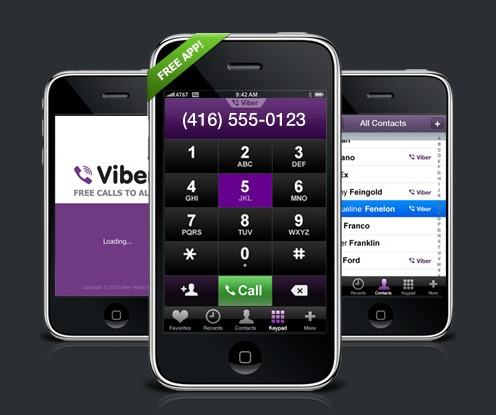
If you are a person who owns a smartphone or a tablet (which makes up around 60% of all people nowadays, it feels like) you must have heard about Viber by now. It is a neat application for your mobile device that allows you to send texts and make calls to other people. And it’s totally free too!
So, in case you are not very familiar with this new technology, here is a short guide to get you started and provide a positive experience.
The Free Stickers
Viber has its own market that has a large selection of stickers for you to choose. Some of them are free while others are not. In order to get some of those free stickers, you have to access Viber market and download the ones that you like. Another way to go about doing it is downloading some of the many free apps that are available for your device. These apps usually come with free stickers you can then use on Viber. Many of those stickers are also cross compatible, meaning you can use them across various IM apps.
Installing the client on two or more devices
Viber supports multiplatform log ins. This means that if you install it on both your PC and your tablet (for example) you can then log in to your account from both of these devices without any problem. In order to do this, you must install this software on your second PC/phone/whatever and activate it using the activation code that you will get on your first device. It may seem a little complicated, but it really is not.
Push to Talk Messages
If you are a fan of this feature, all you need to do in order to use it is to just tap the microphone button that is located on the right side of your conversation screen. After that, hold the big button to enter the ”Hold and Talk” mode. If the person you are trying to reach is also currently in this mode, he or she will receive the message instantly. If not, your message will be recorded and sent to them in the form of voice mail. Keep in mind that these messages have a 30 second limit, so make sure to make your point as quickly as possible.
Customizability
There are many ways to customize your Viber client. You can add a personal touch to it by going to the settings menu and changing the way that your messages preview shows up. You can also set your device to unlock itself every time you receive a message (I personally hate this function because I get a lot of messages and it makes my phone unlock at very awkward times. But in the end, it all depends on the user’s preferences). There are a lot of other cool options included there, so feel free to experiment with your client!
Of course, Viber also includes such basic features as contact list, a phonebook and so on.
I hope this short guide on how to use this wonderful messaging software proved to be useful for you.