How to Connect Bluetooth Headphones to PS5
PS5 cannot pair directly with ordinary Bluetooth headphones. Here's how a compatible USB audio adapter works, what happens to voice chat, and what to check first.
To connect ordinary Bluetooth headphones to a PS5, use a USB Bluetooth audio adapter that explicitly supports PS5, then pair the headphones with that adapter. You cannot normally pair them directly in the console’s Bluetooth Accessories menu. If your headphones support a wired connection, plugging a compatible audio cable into the DualSense controller is another route. Check microphone support separately. Hearing game audio does not mean the headphones’ built-in mic will work.
Can PS5 connect directly to Bluetooth headphones?
PS5 does not support ordinary Bluetooth audio devices through its normal accessory-pairing menu. Sony identifies error CE-109531-9 as an incompatible Bluetooth audio device. Seeing headphones in a device list does not establish that the console can use them for sound.
Choose the connection that matches the hardware you own:
| Your equipment | Connection route | Voice-chat check |
|---|---|---|
| Bluetooth headphones or earbuds | A PS5-compatible USB Bluetooth audio adapter | The adapter may support playback without the headset mic |
| Wireless gaming headset with its own PS5-compatible receiver | Its supplied USB receiver | Follow that headset’s PS5 instructions |
| Headphones with an analog audio input | Compatible cable to the controller’s headset jack | Headphone mic/cable compatibility still matters; the controller mic is a separate option |
| TV that supports Bluetooth headphone output | Headphones paired to the TV; PS5 audio reaches the TV over HDMI | Do not assume the TV returns your headphone mic to PS5 |
These are different signal paths. A Bluetooth logo or a USB plug alone is not a PS5 audio-compatibility guarantee.
How do you connect Bluetooth headphones with a USB adapter?
First check the exact adapter’s PS5 compatibility, supported headphones and USB connection. Look for an audio adapter with console support. A general-purpose Bluetooth adapter made for a computer may not work on PS5.
The Avantree C81-Gaming setup guide provides a concrete example of the process:
- Plug the compatible adapter into the console using the connection specified by its manufacturer.
- Put both the adapter and your headphones into pairing mode. The headphones pair with the adapter, which handles the Bluetooth connection.
- Wait for the adapter’s connection indicator. If your headphones keep reconnecting to a phone, temporarily disconnect that phone while pairing.
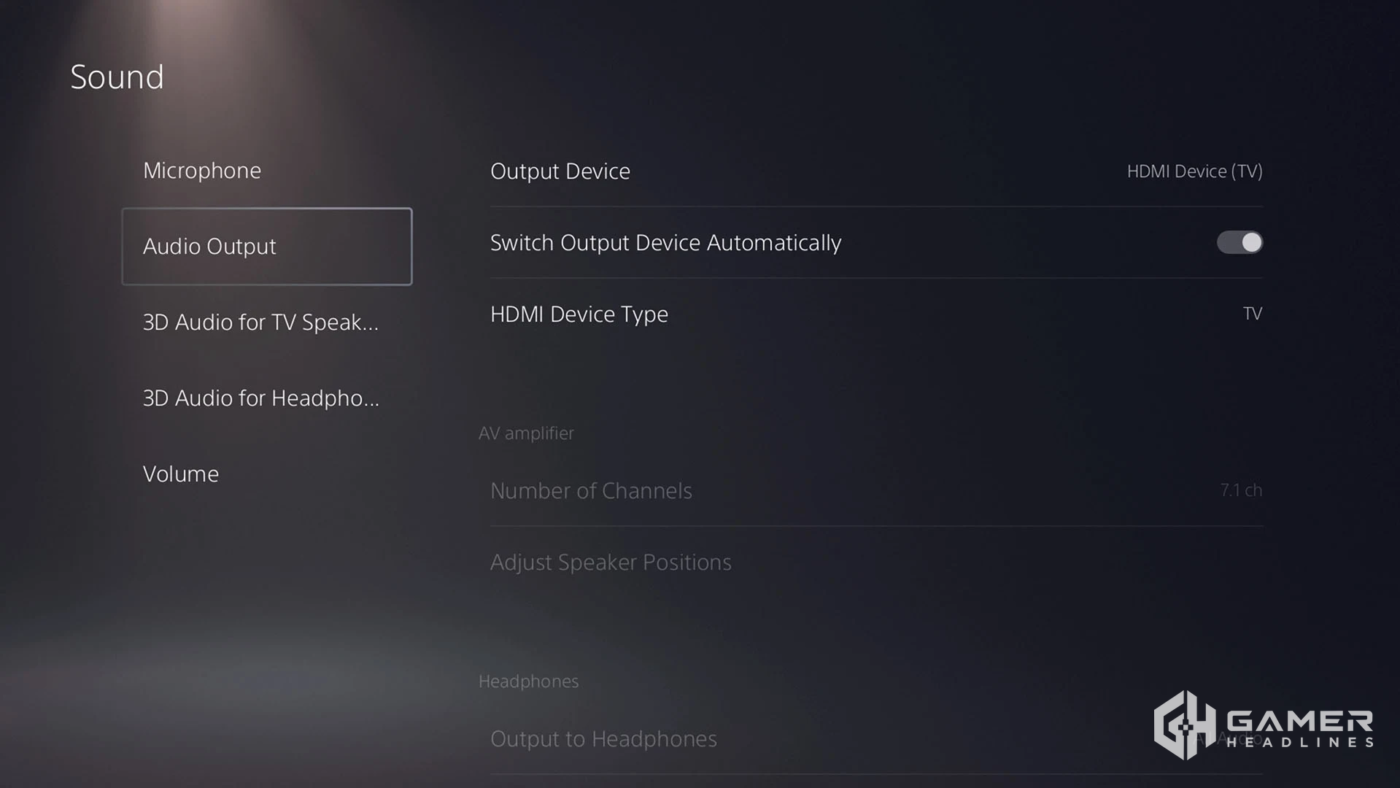
- On PS5, open Settings > Sound > Audio Output and select the adapter under Output Device. Its name can appear as a USB headset; use the name in its current instructions.
- Check headphone volume and play some game or menu audio. Then configure microphone input separately if you want to speak in party chat.
Sony’s audio-settings documentation confirms the Output Device setting and the separate control for what audio goes to headphones. If you hear chat but not the game, check Output to Headphones as well as which output device is selected.
Will the Bluetooth headphones’ microphone work on PS5?
Not necessarily. For the C81-Gaming example above, Avantree’s PS5 mic instructions explicitly say that Bluetooth headphone microphones are not supported on PS5. Game sound goes to the headphones; voice input uses the controller mic or a separate compatible USB mic.
For that setup, choose:
- Output Device: the C81-Gaming USB audio device.
- Input Device: Microphone on Controller, or your connected compatible USB microphone.
Use the PS5 microphone-level meter to confirm the selected input responds when you speak, and check that it is not muted. Changing the output selection will not repair an unsupported microphone path. Other adapter/headset combinations can have different limits, so check each product’s specific PS5 documentation before applying these rules.
Why is there a delay with Bluetooth audio?
Wireless latency depends on the adapter, the headphones and the codec they can use together. Avantree’s current product documentation warns that headphones without the relevant aptX support, including AirPods, can experience audio delay with this adapter. Buying a low-latency adapter does not add a missing codec to the headphones.
There is no universal delay figure for every pairing, and this guide does not claim a measured latency result. If timing matters more than reusing your earbuds, compare a compatible wired connection or a headset with a PS5-supported receiver before purchasing an adapter.
Can you use a wireless gaming headset without a Bluetooth adapter?
Yes, if it already has the appropriate PS5-compatible receiver. Sony’s wireless-headset instructions describe plugging in the included USB adapter and powering on the headset; compatible third-party models should follow their own manufacturer instructions.
Keep a headset’s matched receiver. An unrelated Bluetooth dongle is not a substitute for it. The forthcoming PlayStation Pulse headset is also worth distinguishing from ordinary phone headphones. A headset’s Bluetooth feature is separate from its console-audio connection.
What should you check if there is still no sound?
Work through the connection in order:
- Confirm that the exact adapter supports PS5 audio, and that the headphones are paired to it, not to another device.
- Check that the console has selected that USB audio device as its output.
- Check the console’s headphone volume, the headphones’ own volume and which audio is routed to headphones.
- If sound works but chat does not, inspect the selected microphone and its mute state. Check the adapter’s microphone limitation before repeatedly pairing it again.
- If pairing works but the delay is distracting, check shared codec support. A successful connection and a satisfactory gaming delay are separate results.
An unsupported-device message means you should check compatibility and the connection route. Check those before you consider resetting the console.