How to Verify Game Files on Steam
Use Steam's Installed Files tool to check a broken game before reinstalling it. These steps also explain the normal validation warning and what verification cannot repair.
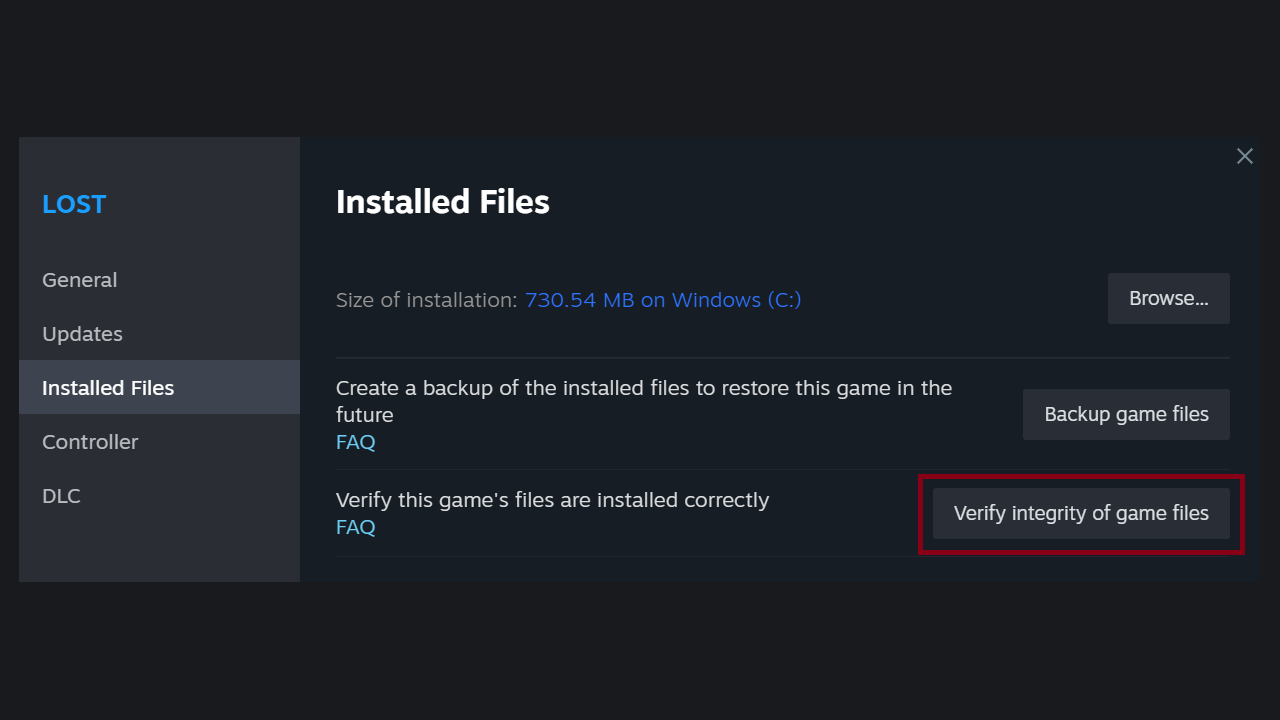
To verify a game’s files in Steam, restart your computer, open your Library, right-click the game (or select its gear icon), choose Properties, open Installed Files, and click Verify integrity of game files. Steam then checks that game’s local installation. Valve says the scan can take several minutes, so let it finish and allow any follow-up download to complete before launching the game again.
How do you verify game files on Steam?
Valve’s current Steam Support instructions use the following path:
- Close the game, restart your computer, and launch Steam.
- Open Library.
- Right-click the affected game, or select the gear icon on its Library page.
- Choose Properties.
- Select Installed Files.
- Click Verify integrity of game files.
- Wait for the check to complete, then let any follow-up download finish before starting the game.
The option applies to one installed game at a time. Valve also warns against verifying several games at once, or running the scan while another storage-heavy task such as a virus scan or drive defragmentation is active. Verification reads a large part of the installation and takes longer on a busy or slower drive.
While the scan runs, Steam shows a check window with progress; Bethesda notes this window closes on its own when the process finishes.
If your Steam window uses a compact layout, begin from the game’s Library page and use the gear icon. The destination is still Properties > Installed Files.
What does Steam verification do?
Verification checks whether a game’s installed files are in the state Steam expects. It is a useful first step after a crash, missing texture, failed update, or launch problem, because it can flag local installation data that no longer validates. Bethesda’s Steam verification instructions confirm the same Properties > Installed Files path.
Verification only checks local game files. Server outages, driver conflicts, account ownership, unsupported mod setups, a Steam reinstall, and library moves all sit outside what it can fix.
Use the result as a diagnostic split:
| Result | What to do next |
|---|---|
| Steam reacquires files | Let the download finish, then launch the game once without extra overlays or manual mods. |
| Steam finishes without a repair | Move to the symptom-specific checks below; repeating the same scan is unlikely to reveal a different cause. |
| The scan will not start | Stop the game and any pending update, restart Steam, confirm the drive is connected and writable, then try once more. |
| The title is unavailable rather than broken | Check account and sharing access. A borrowed library follows the rules in our Steam Families guide. |
Why does Steam say one or more files failed to validate?
Valve says one or more files failing to verify is normal for most Steam games because local configuration files may be intentionally left alone rather than replaced. Bethesda gives the same warning in its support article and describes them as local configuration files that should not be altered in this process.
Do not treat that message alone as proof of a damaged installation. Launch the game after the process finishes and judge the original symptom. If the game now starts and behaves normally, no further action is required.
If Steam downloads the same substantial files after every scan and the original crash immediately returns, stop repeating verification and investigate storage health, security software, permissions, the game’s own support page, or a known patch issue.
What should you try if verification does not fix the game?
Choose the next step from the symptom rather than applying every generic fix:
| Symptom after verification | Best next check |
|---|---|
| Game will not open at all | Restart Steam, install pending operating-system and graphics-driver updates, then check the game’s official support page for required runtimes or launch options. |
| Crash began immediately after a game update | Check the developer’s patch notes and known-issues channel before changing more local files. |
| Online mode alone fails | Check the game’s official server/status channel and platform service status; verified local files do not confirm that a service is reachable. |
| Manual mods are installed | Disable the mod loader and restore a clean, compatible mod set. Verification may replace modified files that Steam tracks, but it may leave unrelated added files behind. |
| Steam reports a write or download problem | Confirm free space, drive connection, and library-folder permissions. The issue may be the destination drive rather than the game’s content. |
| You no longer want to troubleshoot | If the purchase and playtime qualify, follow the current limits and steps in our Steam refund guide. |
Back up manually installed mods and custom files before verification if you need to keep changes made inside the game folder. The tool restores the official installation. Save files are commonly stored outside the installation or synchronized separately, but location and cloud behavior differ by game; check the game’s support documentation before deleting or moving any save data.
Steam verification FAQ
How long does Steam take to verify game files?
Valve gives no fixed duration and says the process may take several minutes. Installation size, storage speed, current drive activity, and whether Steam needs to download anything all affect the total time. A large game on a busy hard drive can take much longer than a small game on an SSD.
Does verifying Steam files delete mods?
It can replace modified files that are part of Steam’s tracked installation. It may not remove every extra file a mod added, so verification is not a guaranteed clean uninstall for mods. Back up what you need and follow the mod author’s removal instructions.
Is verifying files the same as reinstalling a Steam game?
No. Verification checks the existing installation and is usually the faster first step. A reinstall removes and downloads the game again, but it can still leave files that were added outside Steam’s managed set unless you clean them up separately.
Should I verify files before reinstalling a game?
Verify first in most cases. Steam downloads only the files that fail the check, while a reinstall downloads the whole game again. If verification repeatedly repairs the same files and the problem returns, a reinstall plus removing files Steam does not track may be the cleaner path.
Can I verify a game that isn’t installed?
No. Verification checks a local installation, so the game must already be installed and appear as installed in your Library.
Should I let Steam finish updating before verifying?
Yes. Run verification only when the game and any pending download are idle. An update mid-write leaves the installation in a changing state, and Steam itself asks you to close the game and restart first.